PNG to BMP: For Uncompressed, Raw Image Data
Created on 7 October, 2025 • Image Manipulation Tools • 165 views • 2 minutes read
Instantly convert your PNG images into the raw, uncompressed BMP format. Our free tool is perfect for digital archiving and legacy software compatibility.
In a world obsessed with speed and compression, why would anyone convert a modern PNG file to the old, massive BMP format? While it's not for web use, there are specific technical and archival reasons where you need the purest, most uncompressed version of an image.
What is a PNG to BMP Converter? (A Simple Analogy)
Imagine your PNG file is a perfectly preserved, vacuum-sealed package of a rare artifact. It's efficiently packed and protected.
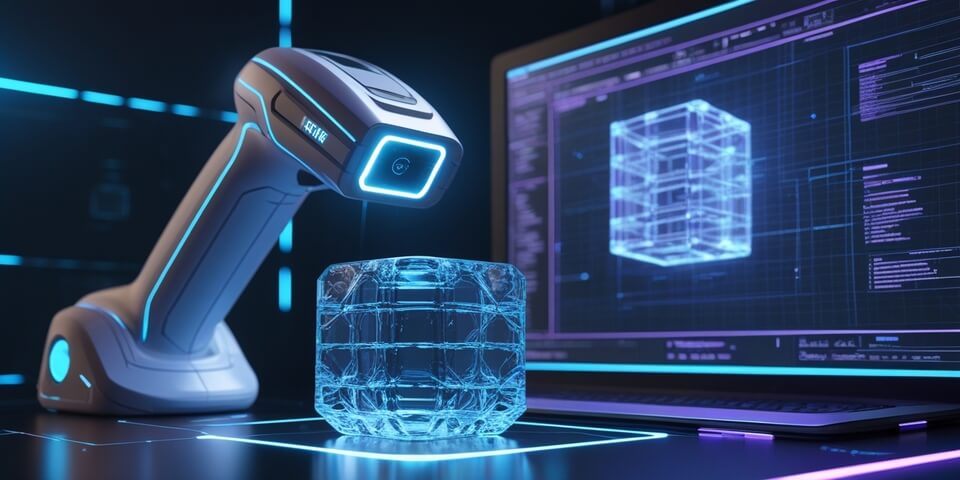
A PNG to BMP Converter is like carefully opening that package and creating a full, uncompressed 1:1 3D scan of the artifact. 📠
The resulting scan (the BMP file) is enormous and clunky to move around, but it contains every single bit of raw, unaltered data about the object's surface. This raw data is sometimes required for specific scientific or legacy software that can't handle modern compressed formats.
How to Use Our PNG to BMP Converter Tool
Converting to this raw format is straightforward:
- Step 1: Upload your PNG image file.
- Step 2: Click the "Convert to BMP" button.
- Step 3: The tool will decompress your PNG and create a raw BMP file for you to download.
If you need it, click this link>>> PNG to BMP Converter Tool
Why Would You Use This?
- ✅ Maximum Data Integrity: BMP is an uncompressed format, meaning every single pixel is stored as raw data without any compression. This is useful for scientific image analysis or digital art where data purity is critical.
- ✅ Legacy Software Compatibility: Some older Windows applications or specific industrial software may only be able to read or import BMP files.
- ✅ Simple Format: Because it's so simple, it's sometimes used as a starting point in computer graphics programming and education.
- ⚠️ Warning: BMP files are extremely large and are not suitable for use on websites, in emails, or for general sharing.
PNG to BMP in Action: Real-World Scenarios
1. The Digital Archivist An archivist has a historically significant PNG logo. For long-term preservation in a raw, uncompressed format, they convert it to a BMP file to be stored in a digital archive.
2. The Software Developer A developer is working with an old graphics library for a Windows application that requires textures to be in BMP format. They use the converter to prepare their PNG assets for the legacy system.
Decoding the Data: Lossless vs. Uncompressed
It's a subtle but important difference:
- PNG (Lossless): The data is compressed, but in a clever way that allows the original to be perfectly reconstructed. It's like a ZIP file for an image. The file is smaller, but all the data is still there.
- BMP (Uncompressed): There is no compression at all. The file simply lists the color of every single pixel, one by one. This is why the file sizes are so large.
Conclusion
While converting to BMP is a niche requirement, it's a critical function for those who need it. Our PNG to BMP converter provides a simple and reliable way to get the raw, uncompressed pixel data from your PNG files for those specific technical and archival needs.
Need a raw, uncompressed version of your image? Try our free PNG to BMP Converter today!