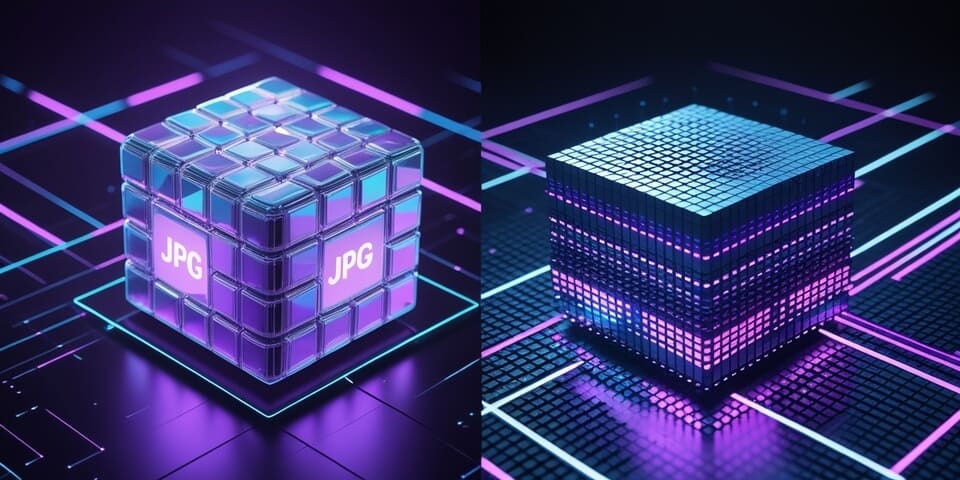
JPG to BMP: From Compressed Photo to Raw Data
Created on 7 October, 2025 • Image Manipulation Tools • 174 views • 2 minutes read
Instantly convert your compressed JPG photos into raw, uncompressed BMP files. Our free tool is perfect for legacy software compatibility and technical image processing.
You have a standard JPG photograph, but for a specific technical, archival, or legacy software need, you must convert it into its raw, uncompressed pixel data form: a Bitmap (BMP).
A JPG to BMP converter handles this specific format change.
What is a JPG to BMP Converter? (A Simple Analogy)
Imagine your JPG file is a highly compressed, ready-to-eat meal in a vacuum-sealed pouch. It's small and efficient.
A JPG to BMP Converter is like taking that meal, opening the pouch, and spreading every single ingredient out on a giant tray for detailed inspection. MRE Tray
The resulting tray of ingredients (the BMP file) is huge and not meant for easy transport, but it gives you access to every single component (pixel) in its raw, uncompressed state. This is useful for certain types of analysis or for systems that only understand raw ingredients.
How to Use Our JPG to BMP Converter Tool
Converting your JPG to a raw BMP is simple:
- Step 1: Upload your JPG image file.
- Step 2: Click the "Convert to BMP" button.
- Step 3: The tool will decompress the JPG data and create a raw BMP file for you to download.
If you need it, click this link>>> JPG to BMP Converter Tool
Why Would You Use This?
- ✅ Legacy Software Compatibility: The most common reason. Some old Windows programs, industrial machines, or specific development libraries can only work with uncompressed BMP files.
- ✅ Raw Pixel Access: For certain computer graphics or image processing tasks, developers may need to work directly with the raw, uncompressed pixel array that the BMP format provides.
- ✅ Digital Archiving: While less common, some archival standards may require an uncompressed format for long-term storage.
- ⚠️ Important Note: Converting a JPG to BMP does not improve its quality. It simply "unpacks" the already-compressed JPG. Any quality lost when the image was first saved as a JPG is gone forever.
JPG to BMP in Action: Real-World Scenarios
1. The Game Modder Someone is creating a custom texture for an older video game. The game's engine requires all custom textures to be in .bmp format. They create their texture in a modern editor and save it as a JPG, then use the converter to get the required BMP file.
2. The Windows Developer A developer is programming a classic Windows application and needs to use an image as a resource. The legacy framework they are using is simplest to work with when the image is a raw Bitmap. They convert their JPG asset to BMP for easier integration.
Decoding the Data: Lossy vs. Uncompressed
This conversion highlights two different storage philosophies:
- JPG (Lossy): Smartly throws away some visual data that the human eye is unlikely to notice in order to make the file size much smaller.
- BMP (Uncompressed): Throws away nothing. It creates a complete, detailed map of every single pixel in the image, resulting in a very large, but very simple, file structure.
Conclusion
While converting from a modern compressed format to an old uncompressed one is a niche task, it's a critical one for those dealing with legacy systems or specific technical requirements. Our JPG to BMP converter provides a reliable bridge between these two worlds.
Need to unpack your JPG into a raw format? Try our free JPG to BMP Converter today!