BMP to PNG: The High-Quality Archival Choice
Created on 7 October, 2025 • Image Manipulation Tools • 169 views • 2 minutes read
Instantly convert huge, uncompressed BMP files into high-quality, efficient PNG images. Our free tool reduces file size with zero loss in quality.
You have an image in the raw, uncompressed BMP format. It's massive, but it contains perfect, pixel-for-pixel image data. How do you make it smaller for easier storage and use, without sacrificing a single bit of that precious quality?
You convert it to PNG, the king of lossless compression.
What is a BMP to PNG Converter? (A Simple Analogy)
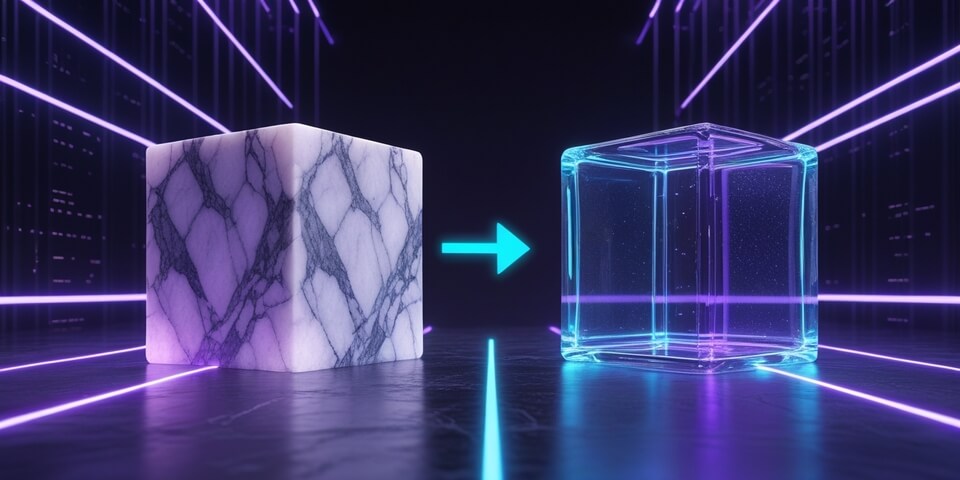
Imagine your BMP file is a large, beautiful, but extremely heavy sculpture made of solid marble (the raw, uncompressed data). It's perfect, but very difficult to move or store.
A BMP to PNG Converter is like a master artisan who creates a perfect, hollow replica of your sculpture using a strong but lightweight material. 🗿➡️✨
The replica (the PNG file) looks identical to the original in every single way—no details are lost. But because it's hollow and made of a smarter material (lossless compression), it's significantly lighter and easier to handle and store. It also supports modern features, like transparency.
How to Use Our BMP to PNG Converter Tool
Archiving your BMP with perfect quality is simple:
- Step 1: Upload your uncompressed BMP image file.
- Step 2: Click the "Convert to PNG" button.
- Step 3: The tool will apply lossless compression and generate a high-quality PNG file that is much smaller than the original.
If you need it, click this link>>> BMP to PNG Converter Tool
Why is This So Useful? Key Benefits
- ✅ Significant File Size Reduction: PNG's lossless compression algorithm is very effective and can often reduce a BMP's file size by 50-70% or more.
- ✅ Zero Loss in Quality: This is the key benefit. Unlike converting to JPG, the PNG conversion is "lossless," meaning the resulting image is a pixel-perfect copy of the original.
- ✅ Add Transparency: The PNG format supports an alpha channel, meaning you can edit the converted file to have a transparent background.
- ✅ The Best Archival Format: PNG is the ideal format for storing master copies of logos, icons, and important graphics that need to be preserved with perfect fidelity.
<h4>BMP to PNG in Action: Real-World Scenarios
1. Archiving a Company Logo A company has its original logo saved as a 10MB BMP file. For easier digital storage and use, they convert it to a 1MB PNG file. The image is visually identical, but now it's much more manageable and web-friendly.
2. The Digital Artist An artist working in a simple paint program saves their line art as a BMP. To prepare it for coloring and layering in a more advanced program like Photoshop, they first convert it to PNG to take advantage of the format's transparency and lossless quality.
Decoding the Data: The Power of Lossless Compression
How can a file get smaller without losing data? PNG's compression algorithm (called "Deflate") is clever. It finds repeated patterns in the image data and, instead of storing the pattern a thousand times, it stores the pattern once and then leaves a short instruction: "repeat this pattern 999 more times." When you open the file, the program reads these instructions and perfectly reconstructs the original image.
Conclusion
Converting a BMP to PNG is the perfect way to modernize your raw image files. You get a massive reduction in file size with absolutely no compromise on quality, plus the added benefit of transparency support. It’s the best choice for high-fidelity image storage and use.
Ready to archive your images with perfect quality? Try our free BMP to PNG Converter today